Showing posts with label feature manager. Show all posts

October 13, 2014

New in SolidWorks 2015- Dynamic Reference Visualization

Dynamic Reference Visualization, is a new feature in SolidWorks 2015.


Dynamic Reference Visualization lets us view the parent relationships between items in the FeatureManager design tree. When we hover over a feature with references in the FeatureManager design tree, arrows display showing the relationships as shown below.

dynamic reference visualization


If a reference cannot be shown because a feature is not expanded, the arrow points to the feature that contains the reference and the actual reference appears in a text box to the right of the arrow as shown below.


new in solidworks 2015


To turn on Dynamic Reference Visualization, in the FeatureManager design tree, right-click the first item (part or assembly) and click Tree Display > Show Dynamic Reference Visualization as shown below.

result of dynamic reference visualization


October 11, 2014

Customizing Context- Sensitive Toolbars - New in SolidWorks 2015

Whats New in SolidWorks 2015 - Customizing Context-Sensitive Toolbars


To make it easier to access commands we use frequently, we can add toolbar buttons to the context toolbars (shown below) that appear when we select features in the graphics area or FeatureManager design tree.

context toolbars in solidworks


To customize context-sensitive toolbars:


Select a feature in the FeatureManager design tree or Graphics area. Right-click the context toolbar that appears and click Customize as shown below.

A.   FeatureManager design tree toolbar


customizing toolbar in feature mananger


B.   Graphics area toolbar


solidworks 2015 whats new


The Customize dialog box opens to the Commands tab.
Below the Buttons area on the right side of the dialog box, a box appears with the default context toolbar buttons shown as unavailable. You cannot remove or reorder the default buttons.

The label of the box indicates whether you displayed the context toolbar from the FeatureManager design tree or the graphics area.

A.   FeatureManager design tree toolbar option

feature manager design tree toolbar


B.   Graphics area toolbar option


customizing toolbar in solidworks


To add commands to the Context toolbar select a command category. Under Buttons, drag a toolbar button to the toolbar. The software places the button after the default buttons. Drag additional buttons to the toolbar. The pointer lets you control the button placement. If you add more than eight buttons, the added buttons automatically wrap to the next line.

customizing context sensitive toolbar in solidworks


To remove a toolbar button you have added, drag it off the context-sensitive toolbar. Click OK.
To access the newly added buttons, click a feature in the location – graphics area or
FeatureManager design tree – where you initiated the customization. (Shown below)


toolbar customization in solidworks 2015


December 14, 2012

SolidWorks 2013 - What's New features- VOL I

SolidWorks 2013 User Interface changes

Customizing Shortcut Bars

Shortcut bars appear when you press the S key in an open part, assembly, drawing,

or sketch.

To customize a shortcut bar:

1. Click Tools > Customize or right-click the shortcut bar and click Customize.

2. In the Customize dialog box, on the Shortcut Bars tab, click one of the following:

solidworks 2013


So now you can select a Shortcut toolbar for Part, Assembly, Drawing and Sketch as shown in the red box above.


Easier Access to Troubleshooting and Administrative Tools

Troubleshooting and administrative tools are available in the SolidWorks Resources tab

of the Task Pane under SolidWorks Tools.

solidworks 2013 troubleshooting and admin features


Feature Manager Design Tree

In part documents, you can set the Feature Manager Design tree to show features in the order they were created, instead of hierarchically.

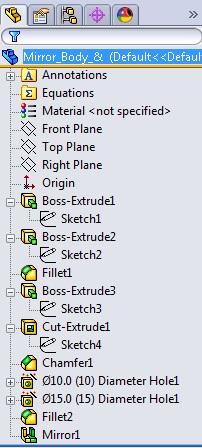
Right-click in the Feature Manager Design tree and click Tree Display > Show Flat Tree View. In Flat Tree View, curves, 2D sketches, and 3D sketches are not absorbed into the features that reference them. Instead, they are shown in the order of creation.

Note: Flat tree is only available for parts.

The Unflatten version is shown below.


solidworks 2013 feature manager design tree


Right click on the Part and select Show Flat view option as shown below.


The tree will appear in Flatten state as shown below.